How to Send a Parish Email
1. Sign into MyTenth.
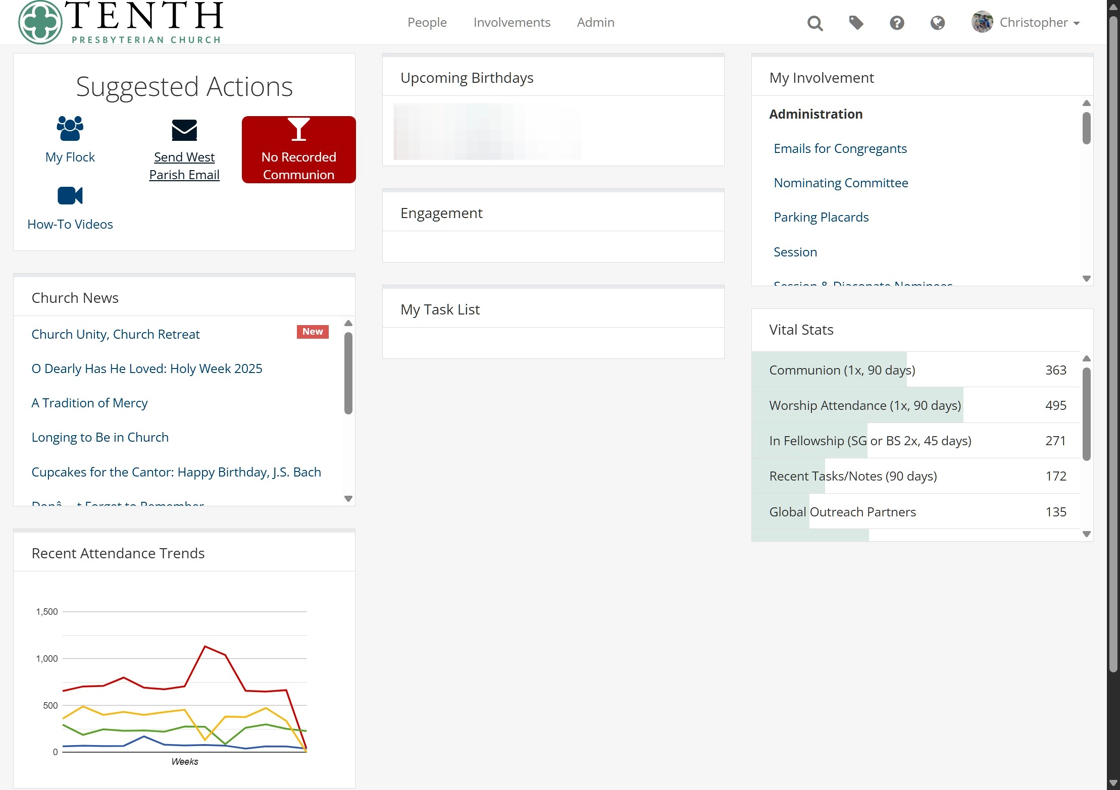
2. You should see a suggested action for sending an email to your parish. Click that.
If you don't see the option, it probably means you're not listed as a member of your parish council. Please get in touch which the officer who maintains that list, or the staff to resolve.
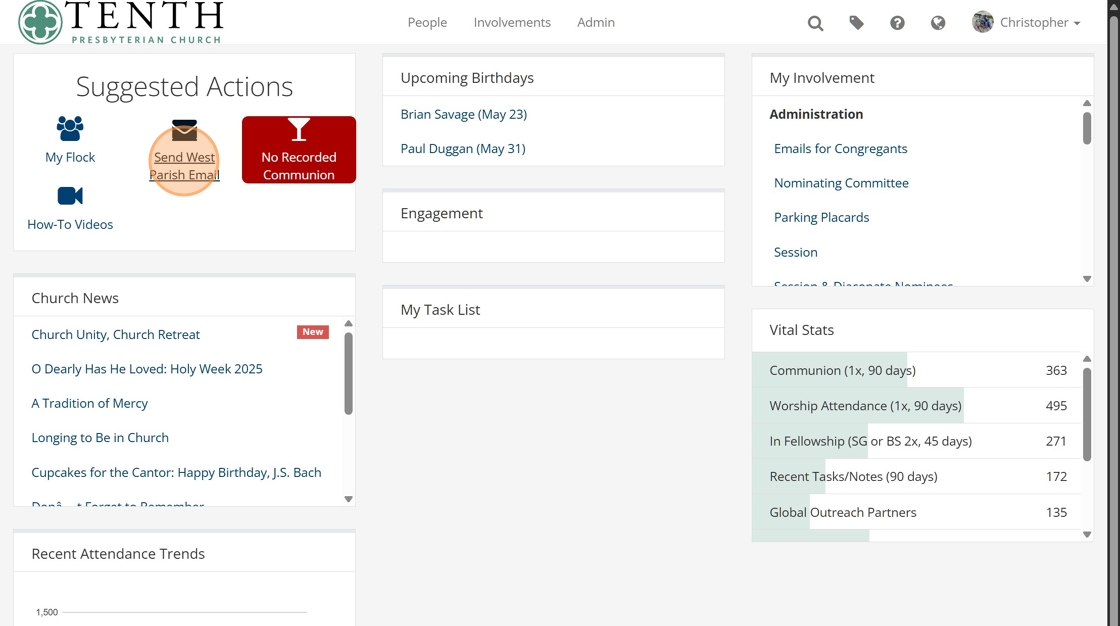
3. Chose the Parish Email Template. You may see more or less templates, depending on what you're involved with.
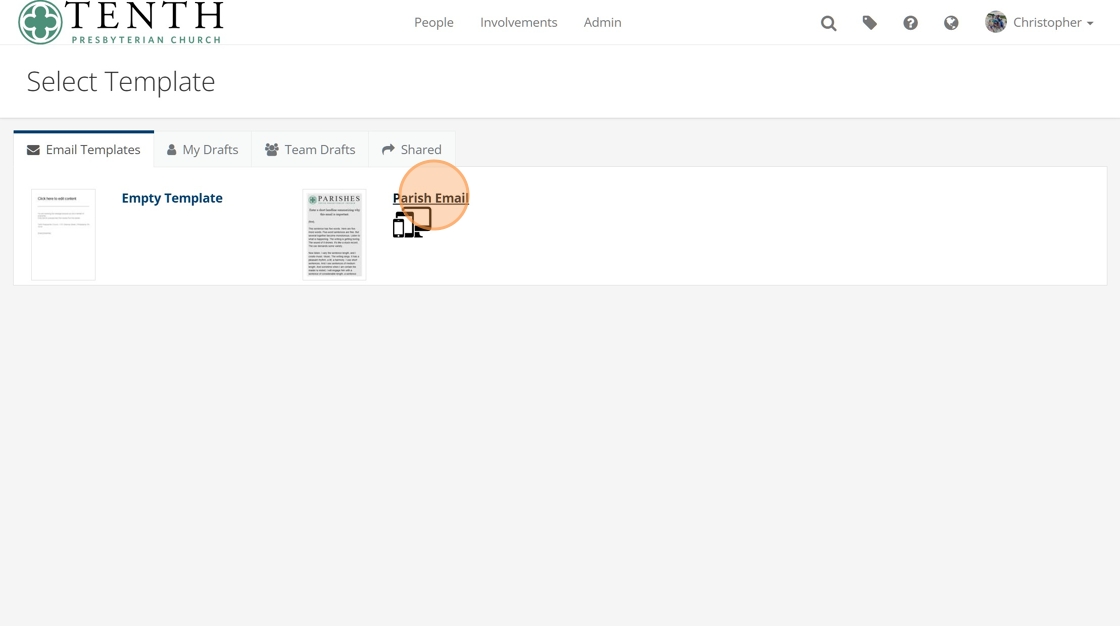
4. The list of recipients is prepopulated for you, and a template appears with a bunch of placeholder text. Click the email preview to open the editor.
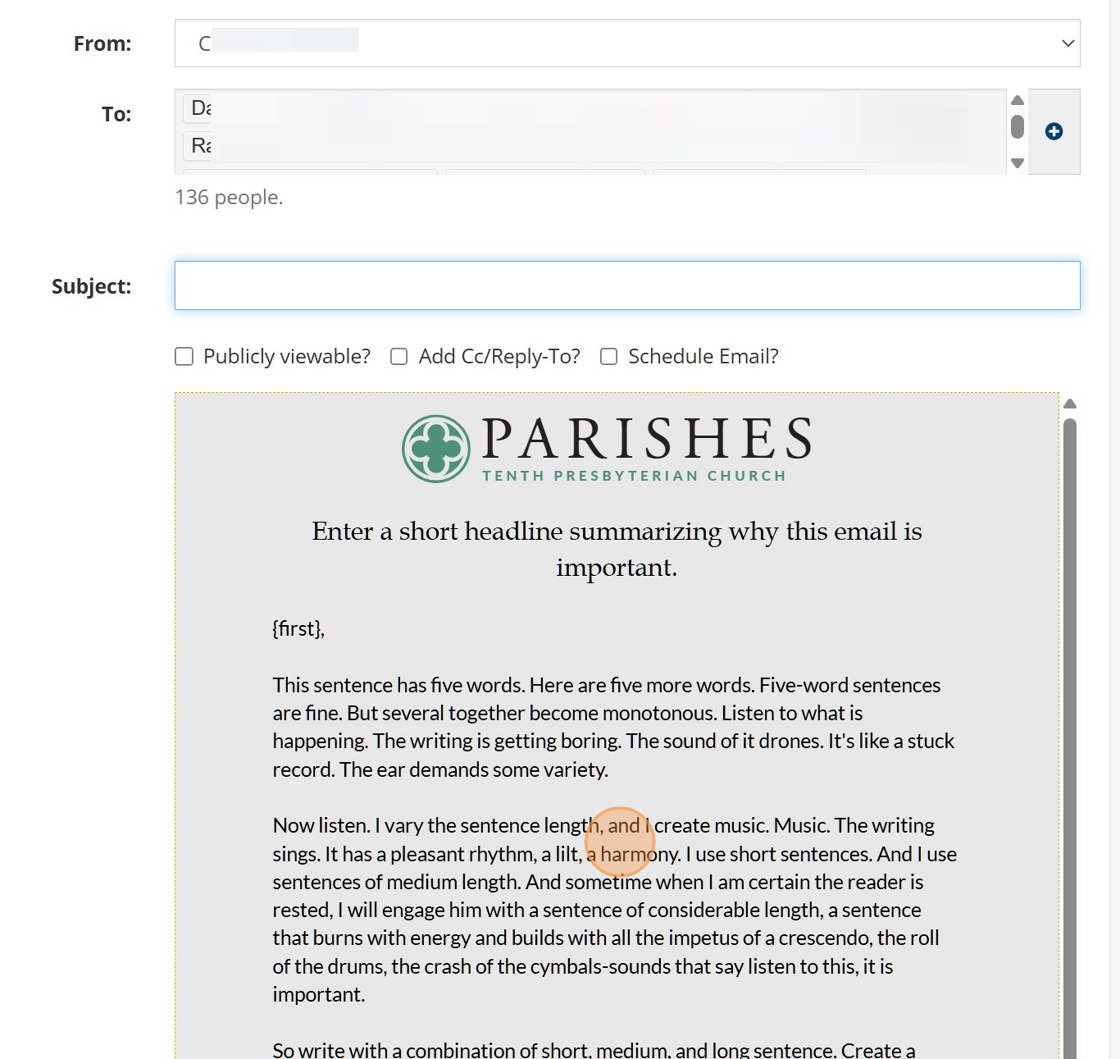
5. Click a block of text to edit it. You can also add new components using the buttons on the right.
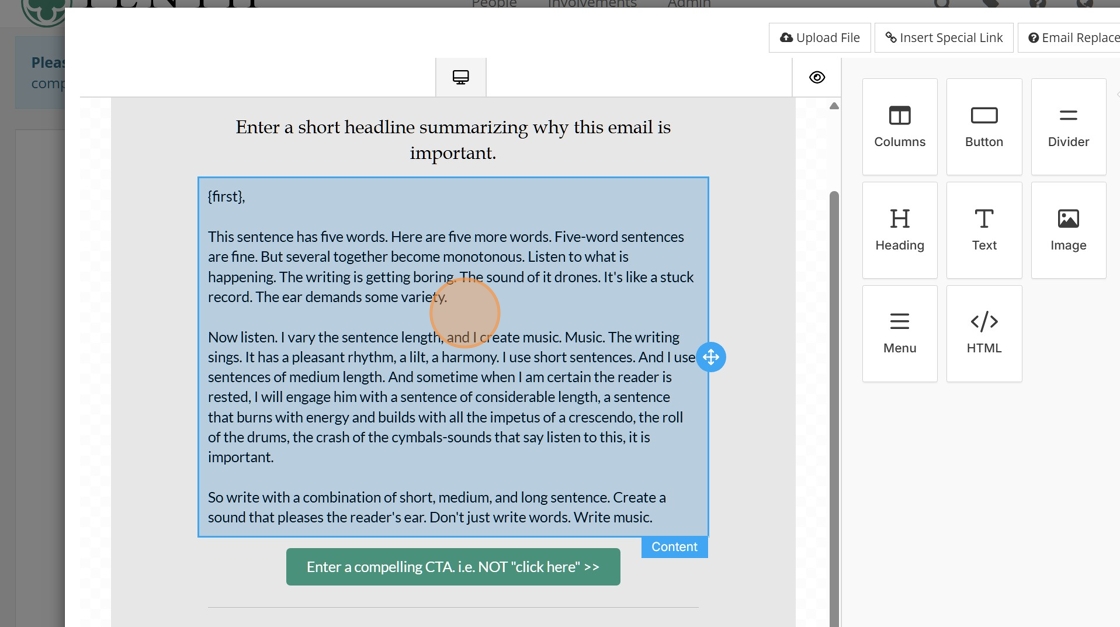
For the rest of these examples, we're going to use a Meal Train as a sample.
6. The template includes a button for a "Call to Action" (CTA). Please either remove the button, or edit it to point to the thing we're asking people to do. To edit or delete the button, click it.
7. If you want to remove the button, you now have a trash can icon there that you can click to remove that component.
Or, change the text of the button by typing.
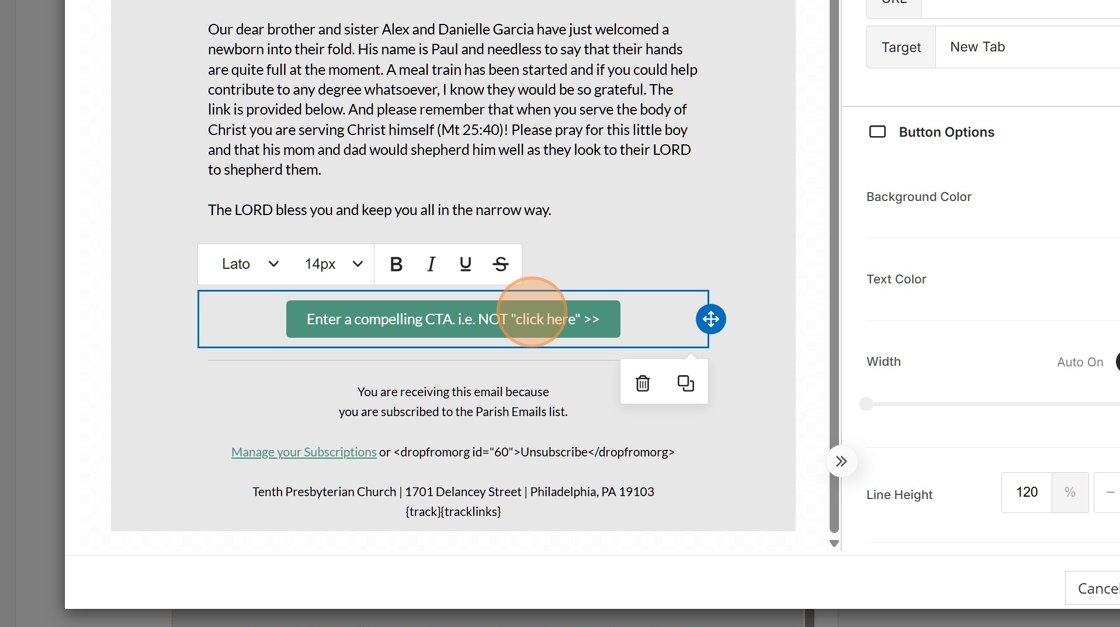
8. With the button still selected, change the action of the button in the right tool panel.
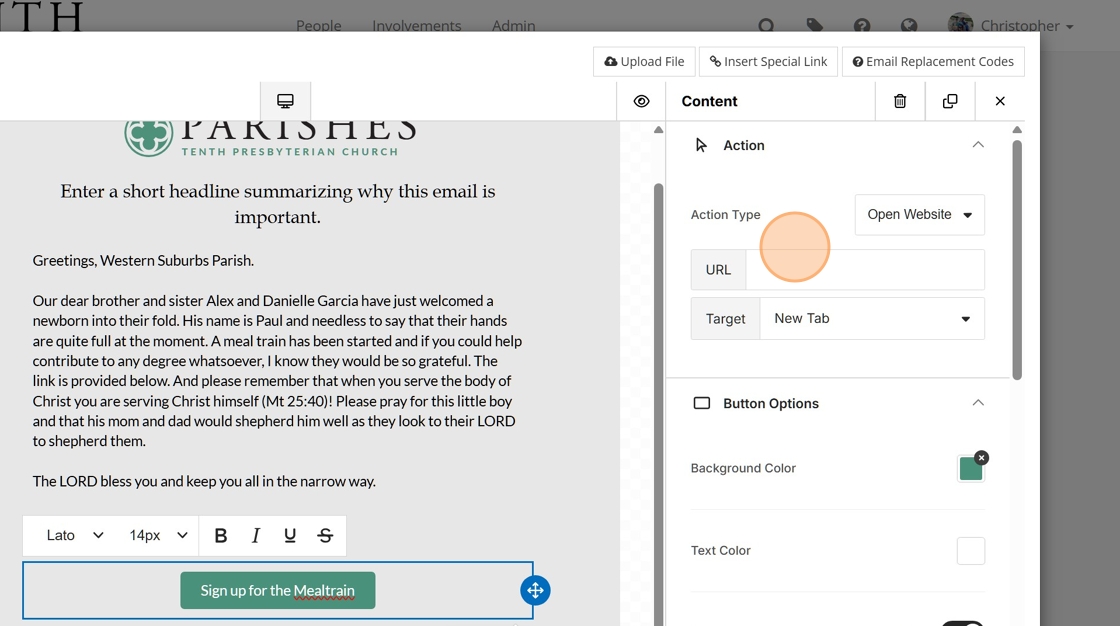
9. Enter a subject.
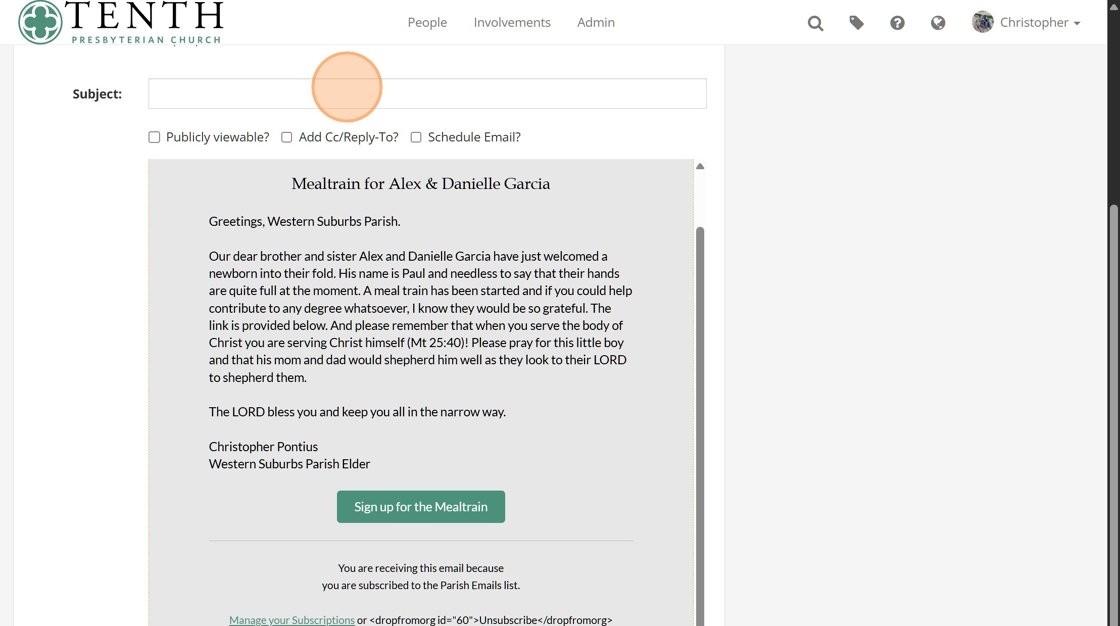
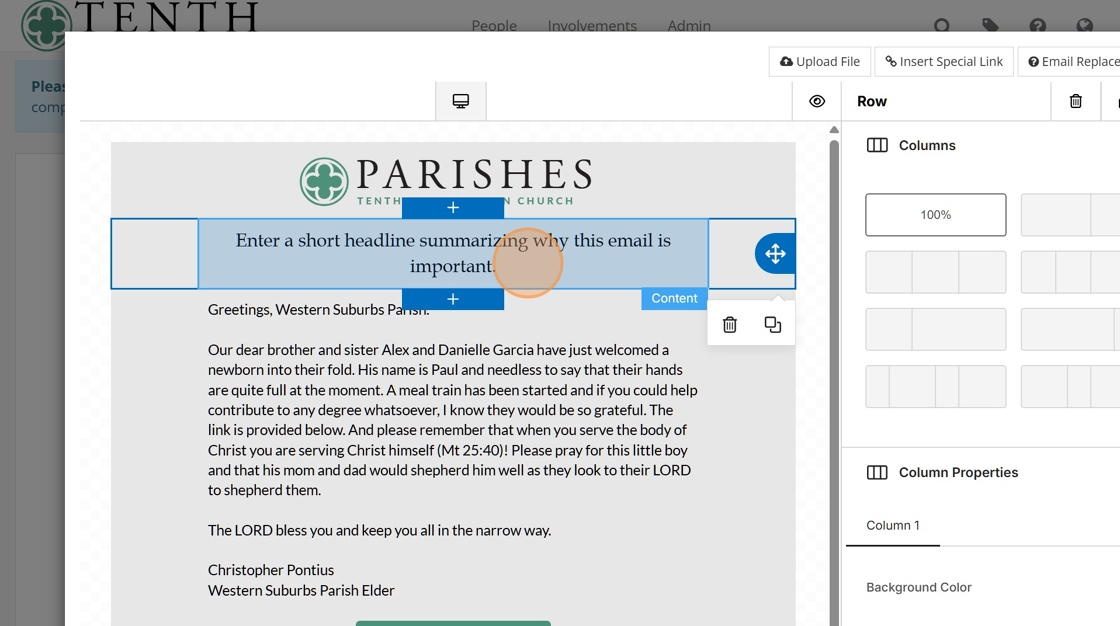
10. The template also includes a header preview. As it says, please put a short headline in that space. On most email clients, this will be the text that appears right after the subject in the list of emails.
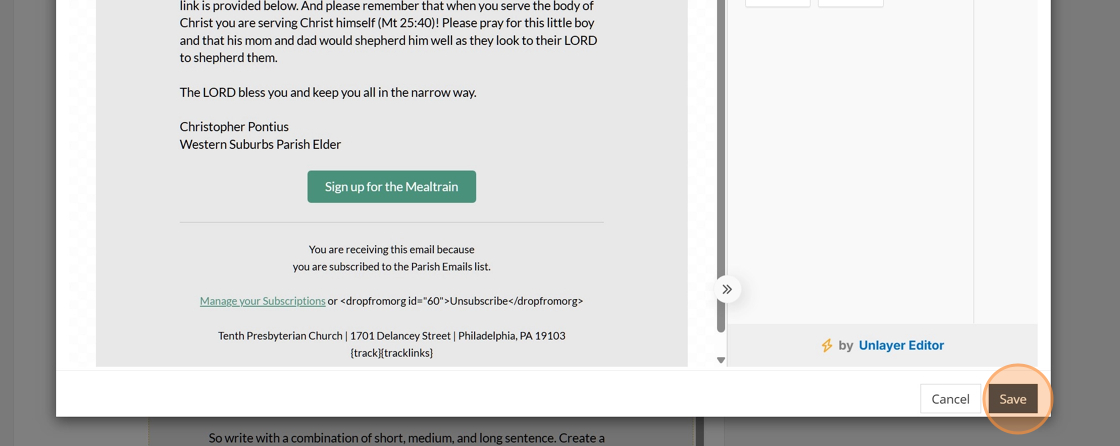
11. When you're done working on the body of the email, click Save to return to the main email sending screen.
12. Click "Send Test Email" to send yourself a sample of how the email will look and work. This is helpful for testing links.
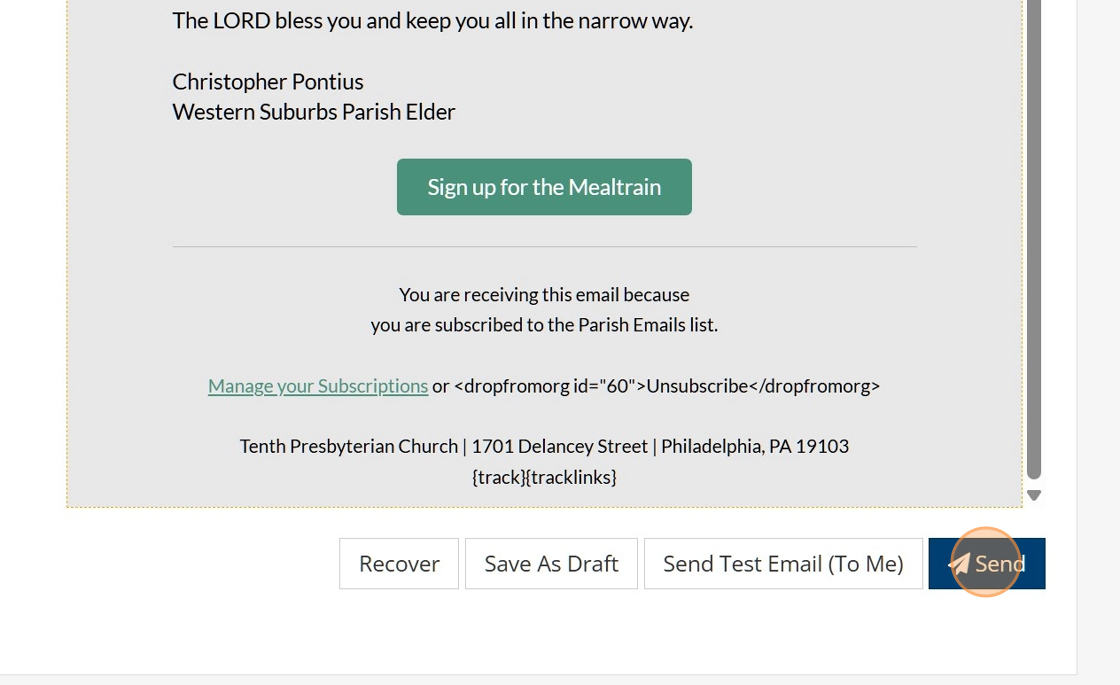
Click "Send" to enqueue to the email to be sent. Typically, it goes out in a few minutes.