
Managing an Involvement's Members Only Page
Learn how to manage and publish files to your Involvement's members-only section. This guide walks you through the editor. All Involvements have this feature, though we only use it occasionally.
Get to your Involvement through the web interface. You can do that by searching for it, or by finding the Involvement in your own Involvements list.
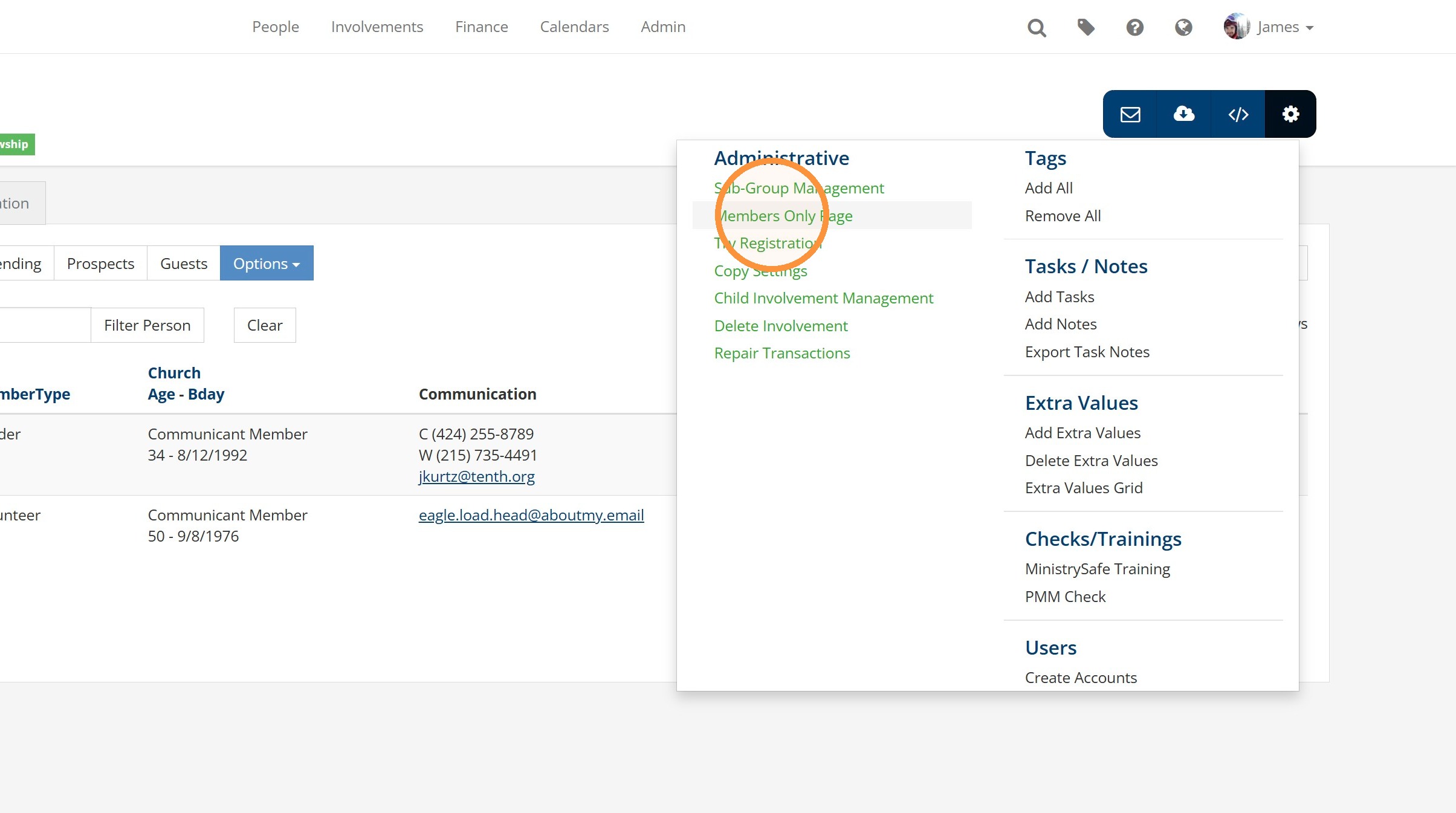
Once you're on the Involvement page, go up to the gear icon and click "Members Only Page."
In this example, I've pre-populated this page with a table of the topics for the different weeks, and I have an empty column for Resources. Although I have this table in my example, you can use whatever content you want, in whatever layout you want. This page is accessible only to people who are in the Involvement.
At the top right, leaders of the Involvement will see an "Edit" link. This is only visible to leaders. Click that Edit link to go to the editor page.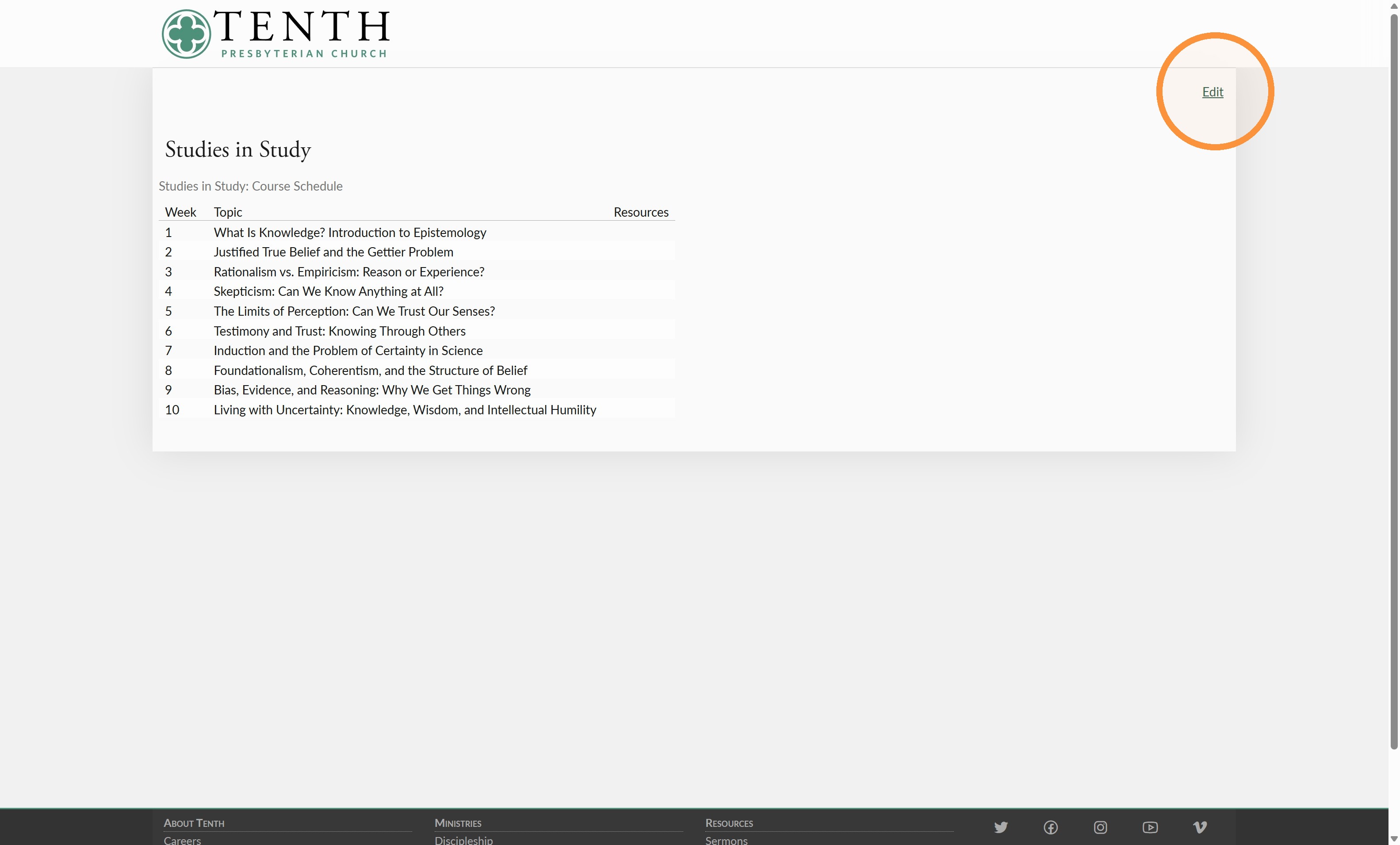
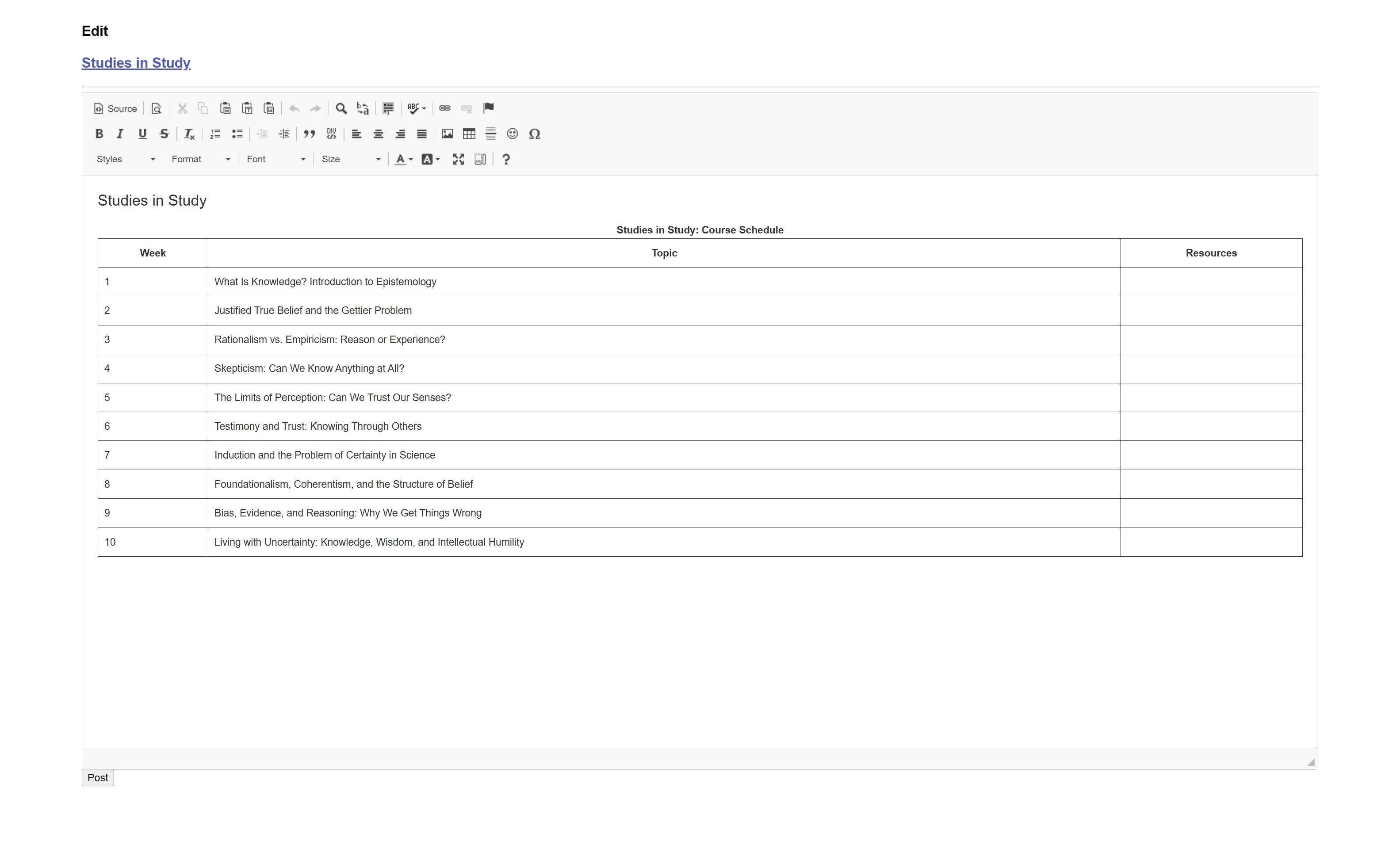
Once the editing page loads, you can see the table from before. It looks a little bit different, but the content is the same, and that's the important thing. The published page (outside the editor) will have the Tenth shell applied, and with that, fonts and formatting will be applied automatically.
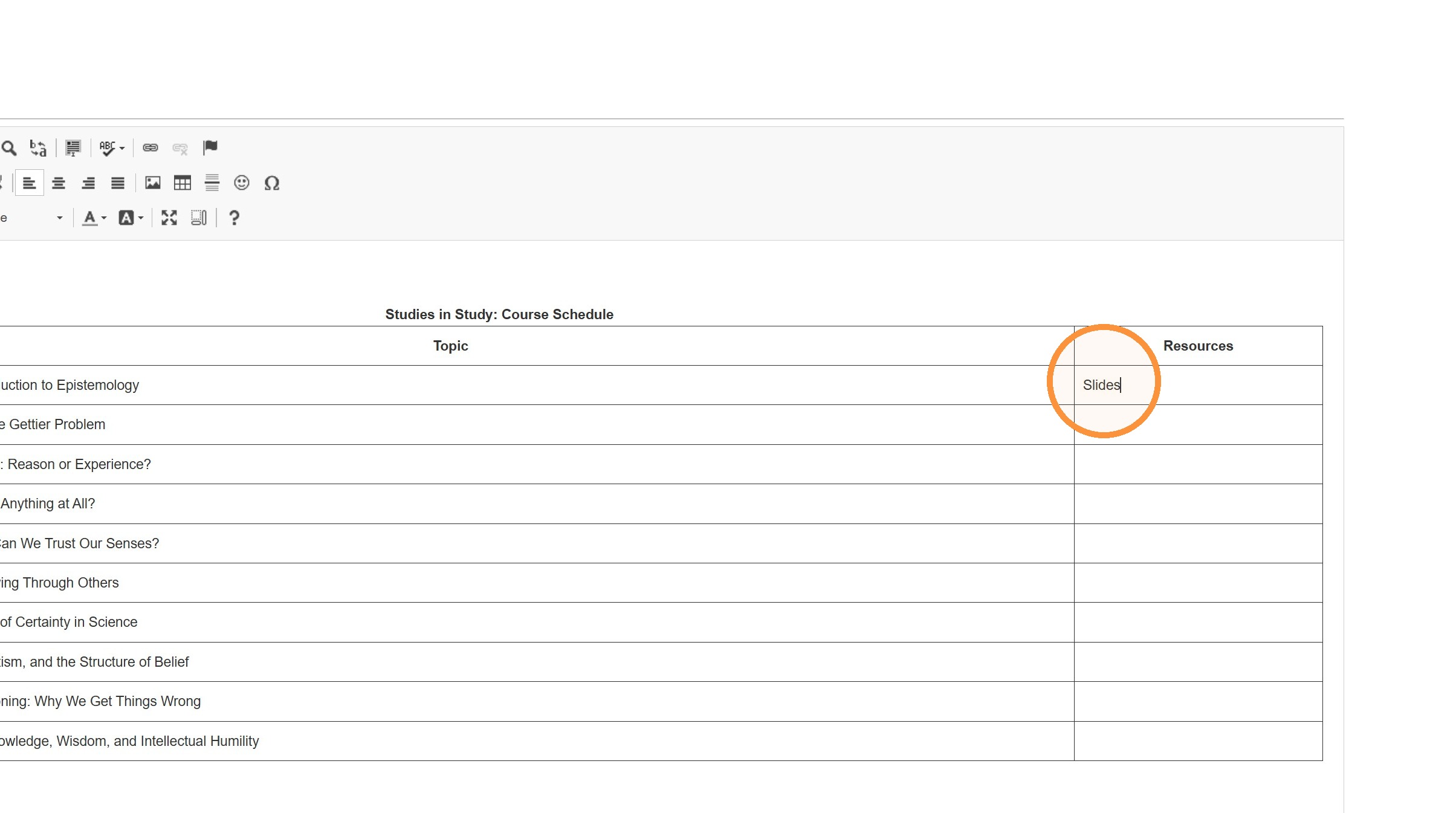
In our example, we just finished the first week of this class, so now I'm going to add a link to the slides. To do that, I'm going to type the word "Slides" and then select it.
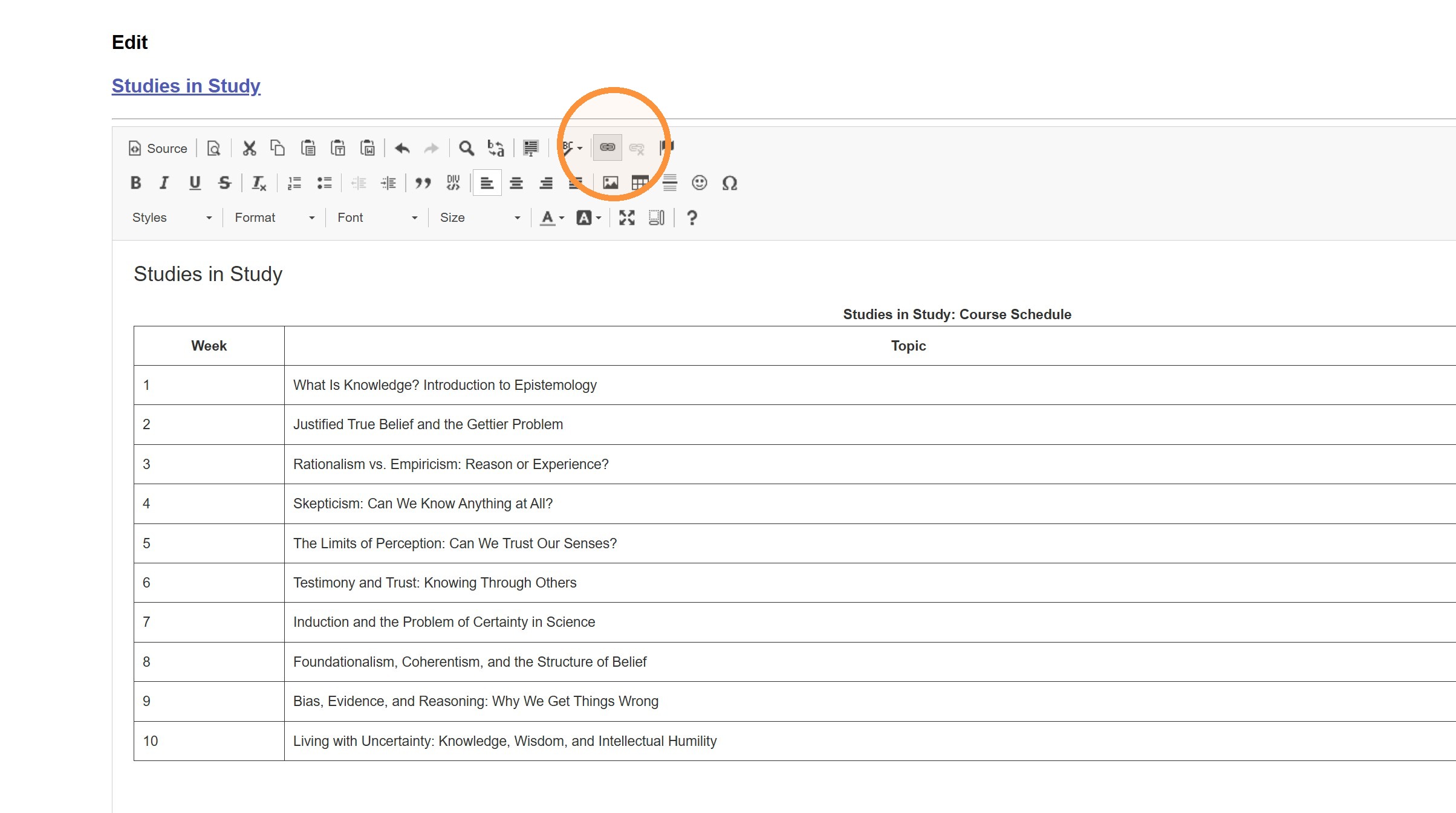
Then we'll click the Link button in the toolbar.
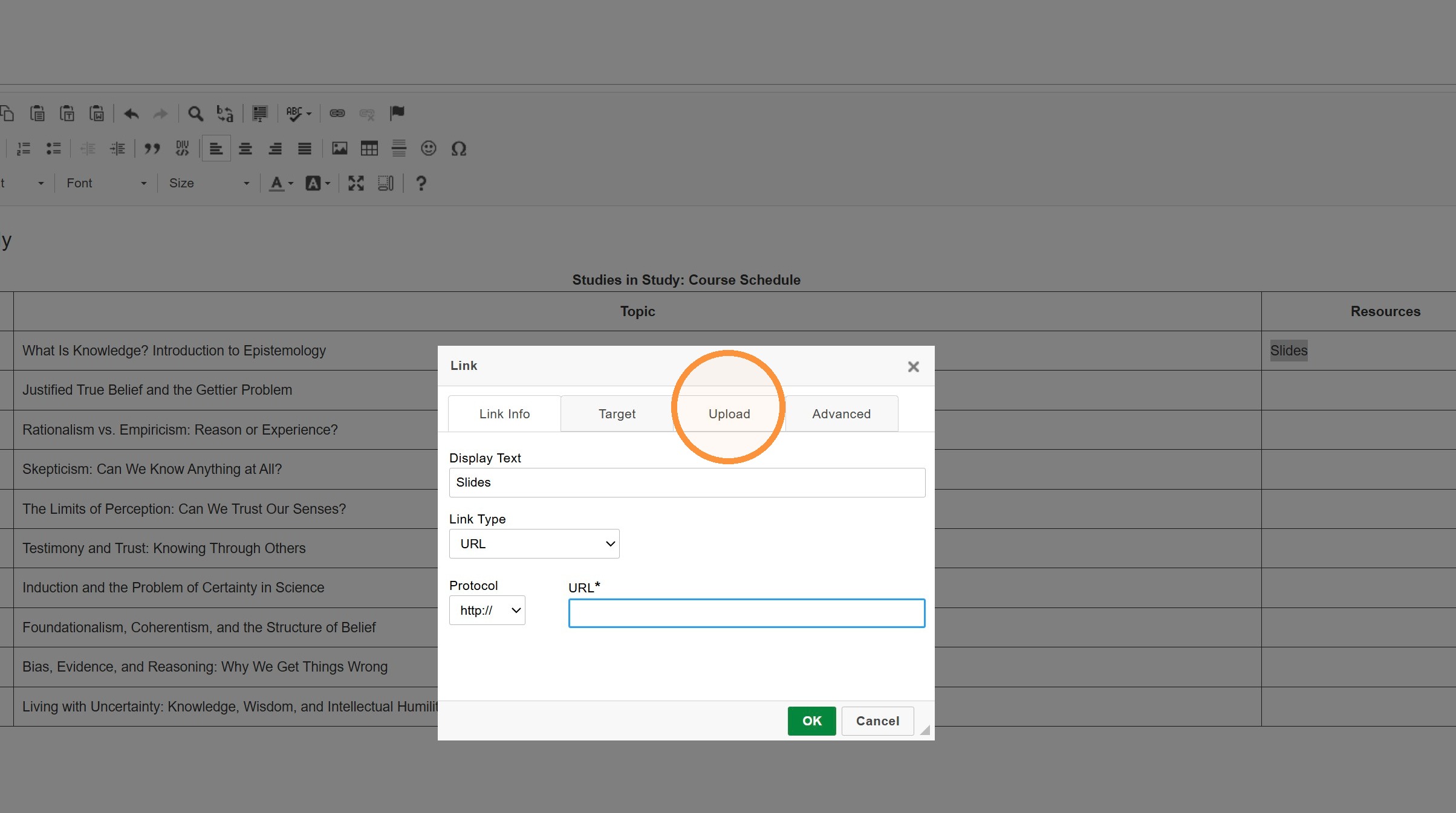
If we had the files in a web-accessible location already, we could just put in the URL, but I don't have that in my example, so I'm going to go to the Upload tab.
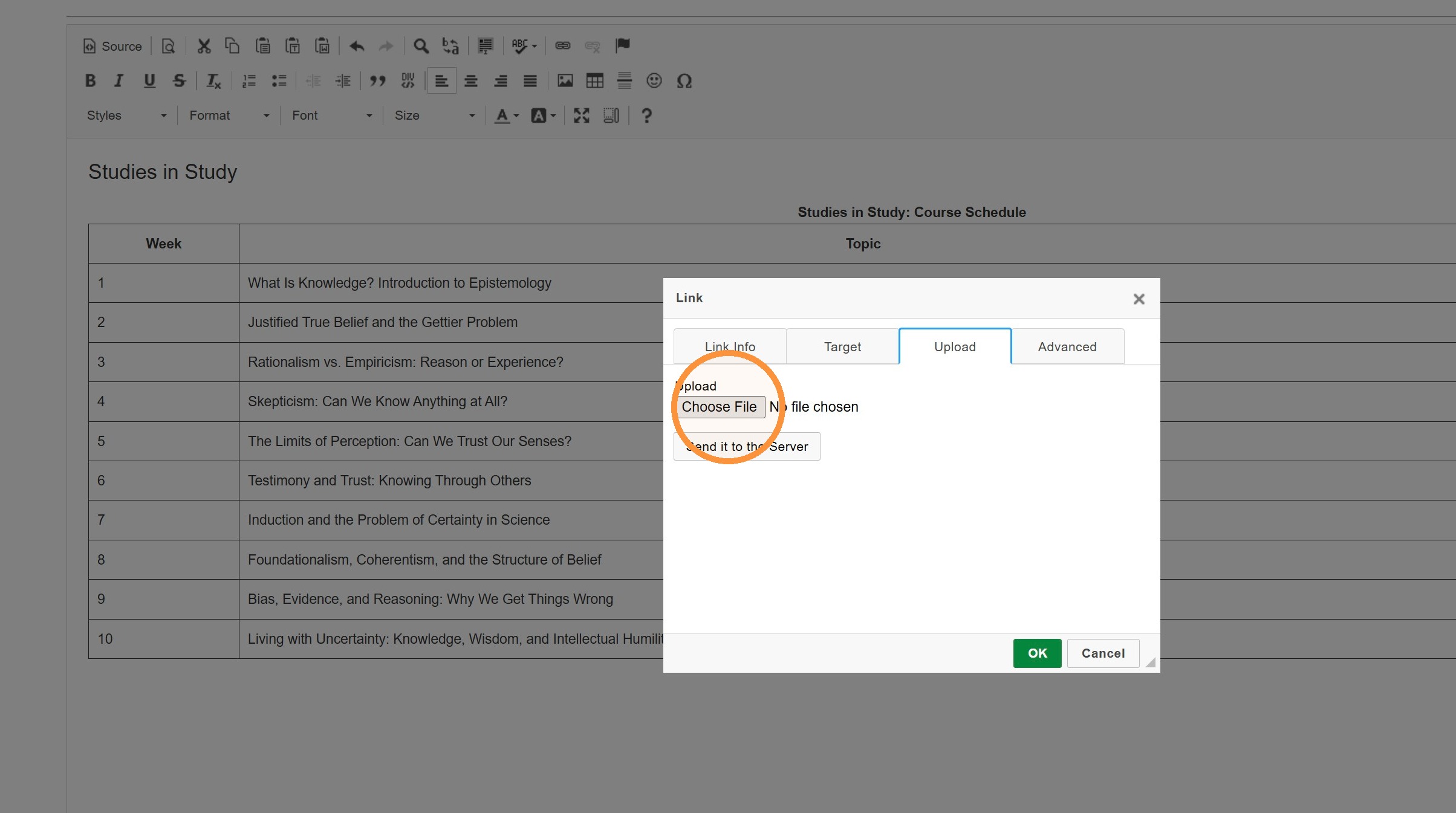
Here, choose the file from your computer, and then click Send it to the Server, and then click OK.
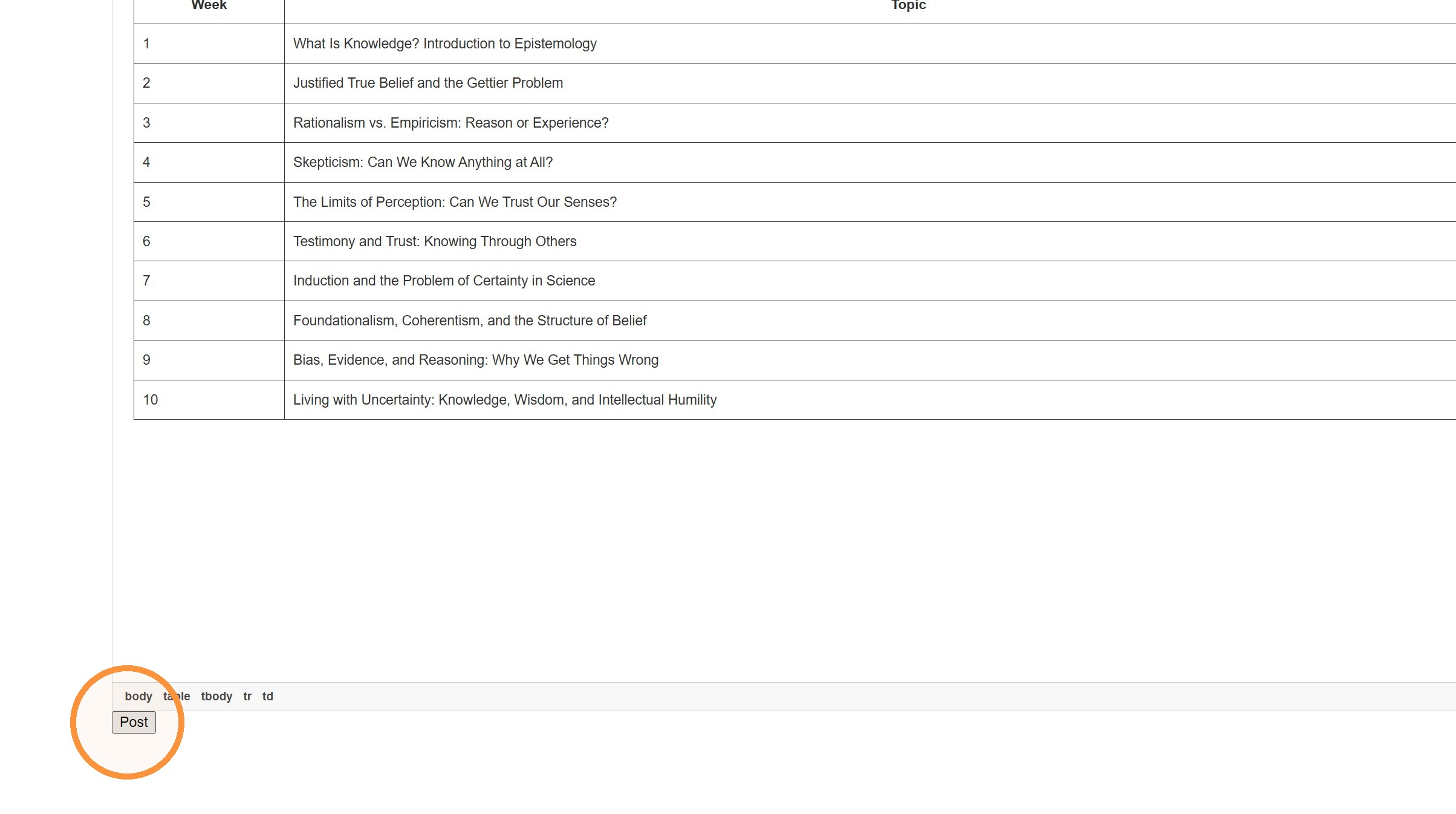
The link is created, and we can now click "Post" at the bottom of the editor page to save our changes.
If we go back to the main Members Only page, we can now see the link to the slides.
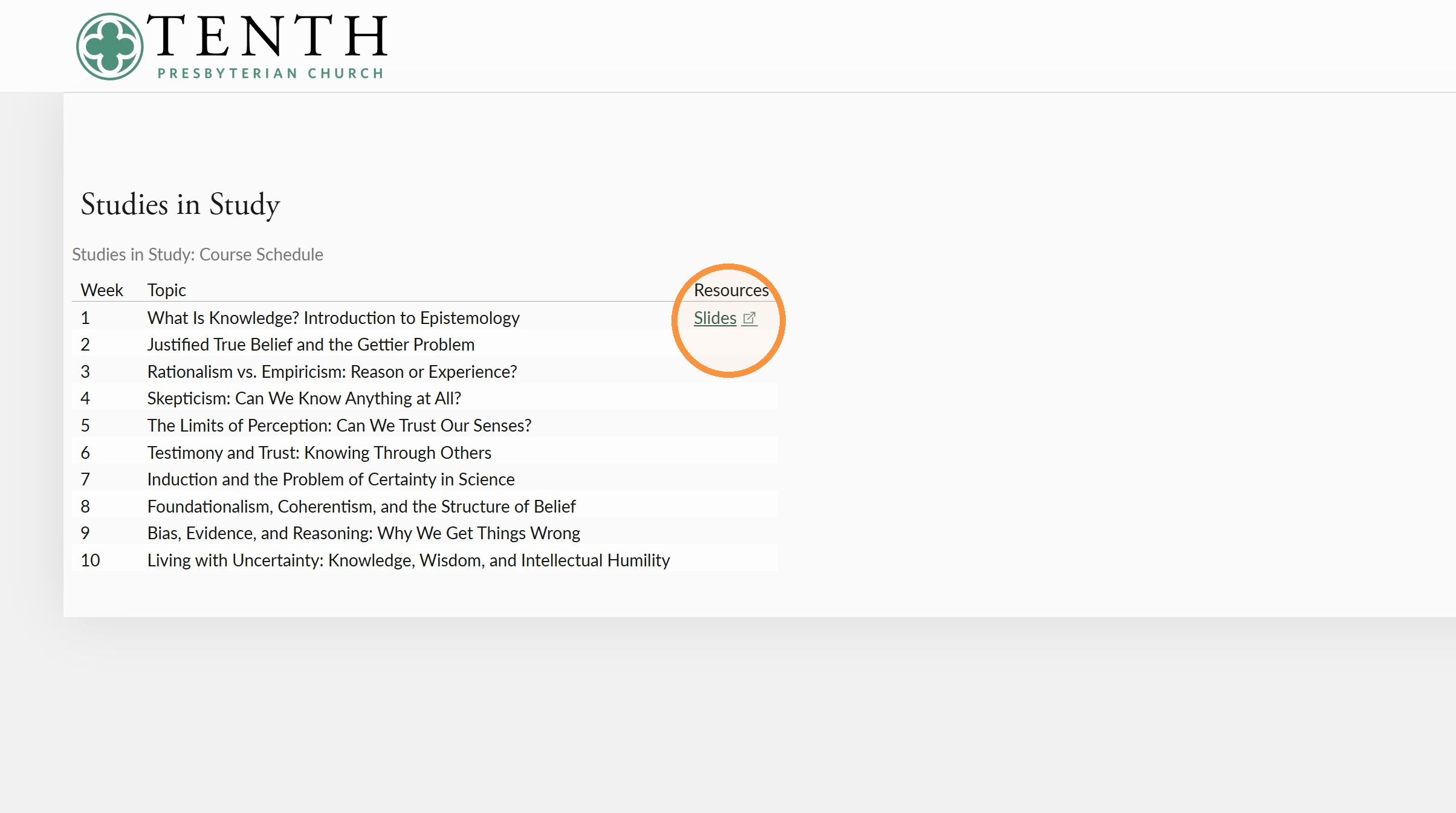
You can use this system for sharing any kind of content, though if you're wanting to share media like video or audio, there may be better ways to do that, so please get in touch with us. You also can, if you're willing to have the information be a bit more public, put this information into the Involvement Description, in which case it will be copied to the website overnight.